
See your menu bar icon the way it actually ships.
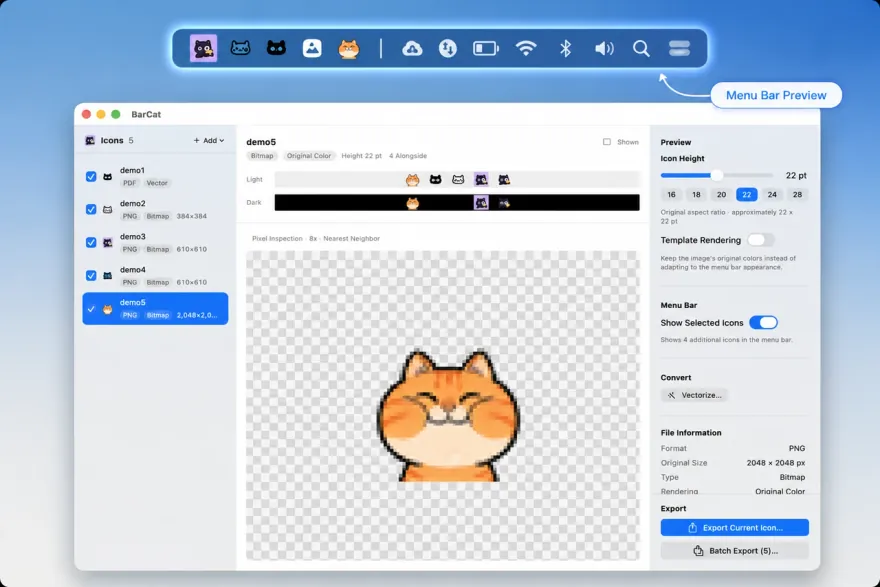
See your menu bar icon the way it actually ships — rendered in the real macOS status bar, not a mock window. Size, template tinting, light and dark — exactly as they'll look the day you release.
macOS 14 (Sonoma) or later · Apple Silicon & Intel · v1.0.0

Screenshots
See BarCat in action
How it works
Three steps from candidate to shipping icon.
The core loop, end to end — preview honestly, compare instantly, ship a clean asset.
01
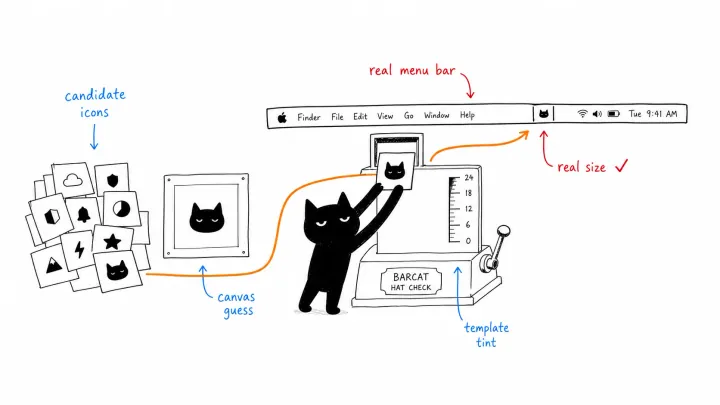
Preview in the real menu bar
Candidates render on a live NSStatusItem using the same NSImage + isTemplate path as the system. The only honest place to judge a menu bar icon is in the menu bar itself — not in a Figma frame or a mock window.
02
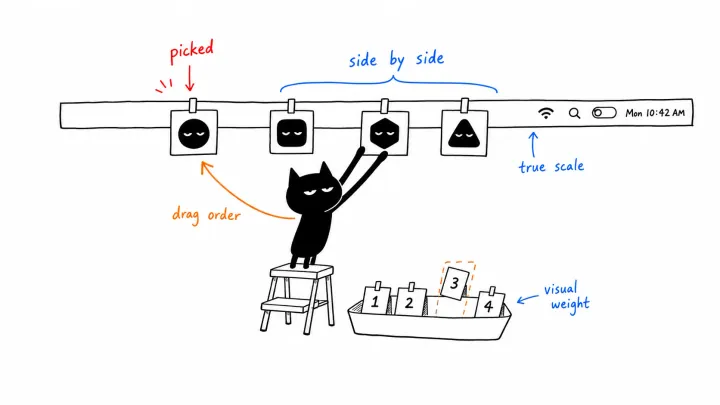
Compare candidates side by side
Tick a few candidates and they all appear together in the menu bar at once. Compare visual weight, drag to reorder, and pick the winner with an instant A/B that no static grid can give you.
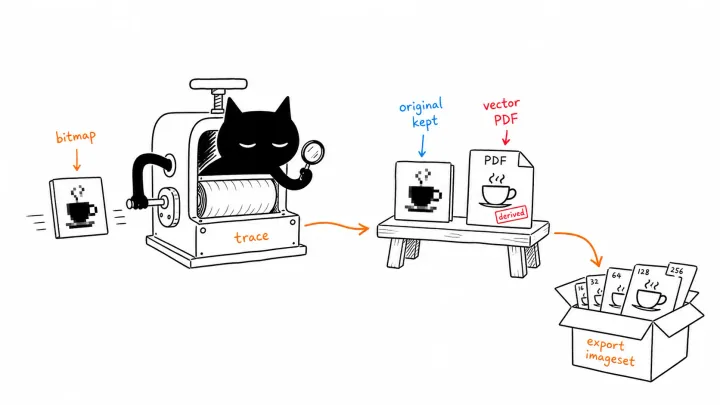
03
Vectorize, then export
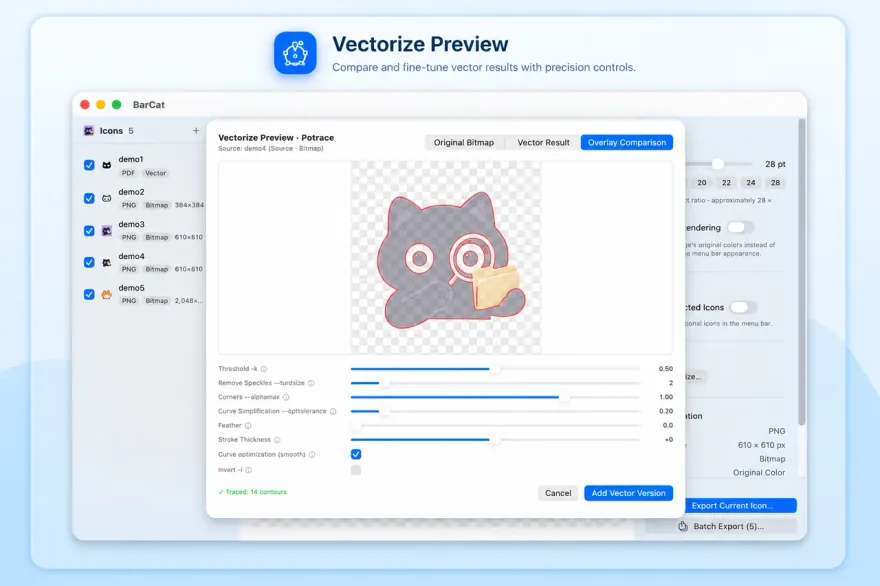
Turn a bitmap into a true vector PDF with original / vector / overlay views and live tuning. Export PNG @1x / @2x / @3x or a ready-to-ship PDF imageset in one click.
The problem
A canvas doesn't tell the truth about a menu bar icon.
Icons look fine in Figma or on the canvas. Then they hit the real status bar, and the trouble shows up:
- Size that's off — too big, too small, or blurry at 1×.
- Template tinting that vanishes against the real menu bar in light or dark.
- Edges that alias or lose detail you only notice once it ships.
Features
Built for the menu bar, specifically.
Real menu bar preview
Candidate icons render on a live NSStatusItem using the same NSImage + isTemplate path as the system. What you see is what ships — no mock windows.
Side-by-side comparison
Tick several candidates and they appear together in the menu bar for an instant A/B. Drag to reorder and pick the winner.
Light, dark & pixel zoom
Preview against both appearance modes and inspect at 8× to catch aliasing, blur, and lost detail before your users do.
Precise sizing
A slider plus common presets (14 / 16 / 18 / 22 / 24 / 26 / 28 pt) and a template-image (isTemplate) toggle.
Vectorize
Turn a bitmap into a true vector PDF with original / vector / overlay views and live tuning. Powered by a built-in vector tracer — no external tools needed.
Flexible input
Drag in PDF or PNG, multi-select files, or drop a whole directory — .imageset folders are read recursively.
One-click export
Vector → PDF imageset. Bitmap → PNG @1x / @2x / @3x. Batch export included.
Built with care
Engineered to be honest and clean.
- Native Swift / SwiftUI + AppKit.
- Same NSImage + isTemplate render path as the system — preview equals ship.
- Vectorization powered by a built-in tracer — no external dependencies.
- Hardened Runtime enabled.
Questions? See the help docs